| .circleci | ||
| .devcontainer | ||
| .github | ||
| assets | ||
| docs | ||
| hooks | ||
| pkg | ||
| scripts | ||
| test | ||
| vendor | ||
| .dockerignore | ||
| .gitignore | ||
| .golangci.yml | ||
| .goreleaser.yml | ||
| CODE-OF-CONDUCT.md | ||
| CONTRIBUTING.md | ||
| coverage.txt | ||
| docker-compose.yml | ||
| Dockerfile | ||
| go.mod | ||
| go.sum | ||
| LICENSE | ||
| main.go | ||
| README.md | ||
| test.sh | ||


Available for MacOS and Linux


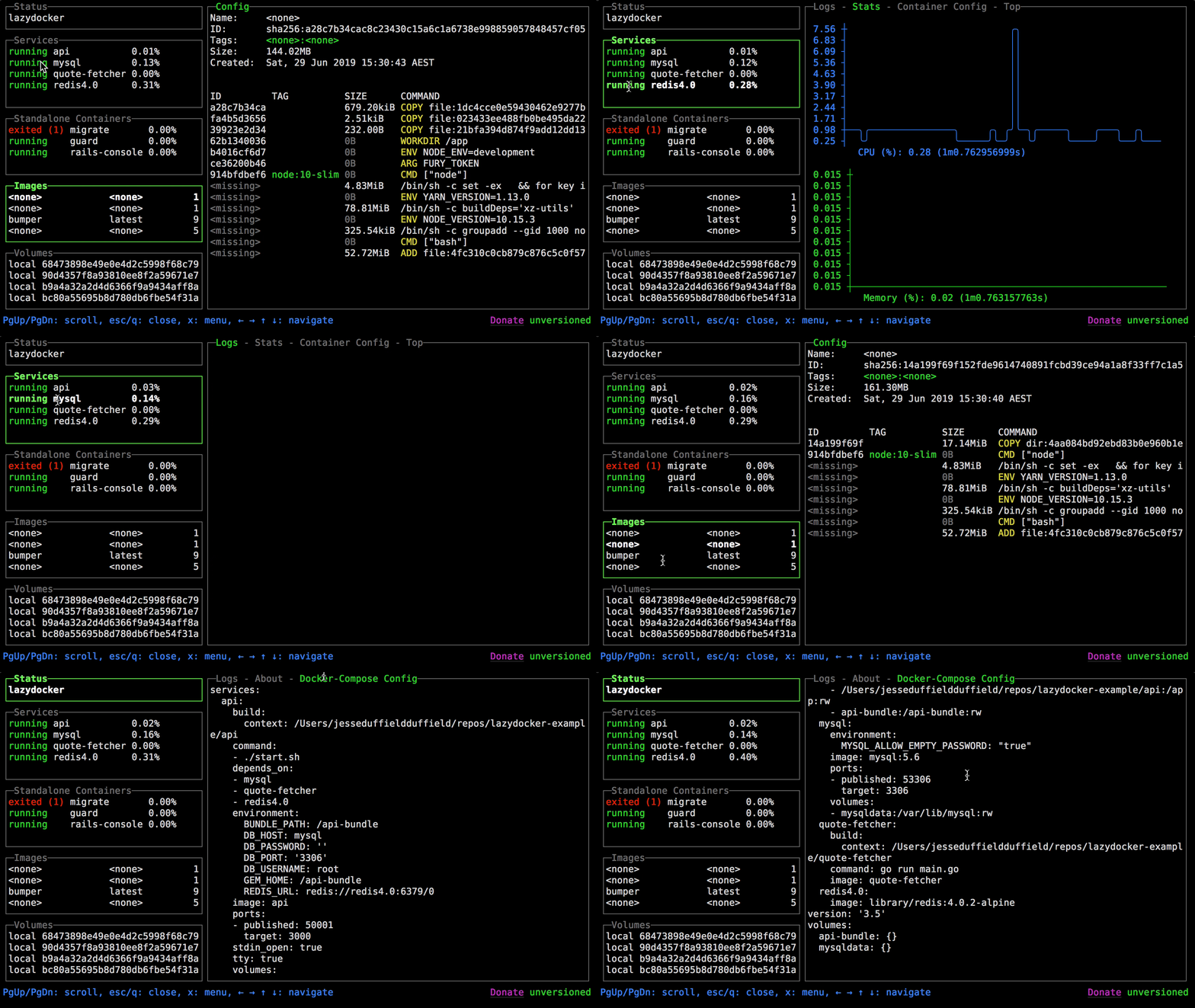
A simple terminal UI for both docker and docker-compose, written in Go with the gocui library.







Sponsors
Maintenance of this project is made possible by all the contributors and sponsors. If you'd like to sponsor this project and have your avatar or company logo appear below click here. 💙
















































Elevator Pitch
Minor rant incoming: Something's not working? Maybe a service is down. docker-compose ps. Yep, it's that microservice that's still buggy. No issue, I'll just restart it: docker-compose restart. Okay now let's try again. Oh wait the issue is still there. Hmm. docker-compose ps. Right so the service must have just stopped immediately after starting. I probably would have known that if I was reading the log stream, but there is a lot of clutter in there from other services. I could get the logs for just that one service with docker compose logs --follow myservice but that dies everytime the service dies so I'd need to run that command every time I restart the service. I could alternatively run docker-compose up myservice and in that terminal window if the service is down I could just up it again, but now I've got one service hogging a terminal window even after I no longer care about its logs. I guess when I want to reclaim the terminal realestate I can do ctrl+P,Q, but... wait, that's not working for some reason. Should I use ctrl+C instead? I can't remember if that closes the foreground process or kills the actual service.
What a headache!
Memorising docker commands is hard. Memorising aliases is slightly less hard. Keeping track of your containers across multiple terminal windows is near impossible. What if you had all the information you needed in one terminal window with every common command living one keypress away (and the ability to add custom commands as well). Lazydocker's goal is to make that dream a reality.
- Requirements
- Installation
- Usage
- Keybindings
- Cool Features
- Contributing
- Video Tutorial
- Config Docs
- Twitch Stream
- FAQ
Requirements
- Docker >= 1.13 (API >= 1.25)
- Docker-Compose >= 1.23.2 (optional)
TLS Configuration
Lazydocker supports secure connections to Docker daemon using TLS. To enable TLS, you can configure it in your config.yml:
Basic TLS Configuration
tls:
  enable: true
  caCertPath: "/path/to/ca.pem"
  certPath: "/path/to/cert.pem"
  keyPath: "/path/to/key.pem"
Complete TLS Configuration
tls:
  enable: true                    # Enable TLS connections to Docker daemon
  caCertPath: "/path/to/ca.pem"   # Path to Certificate Authority (CA) certificate
  certPath: "/path/to/cert.pem"   # Path to client certificate
  keyPath: "/path/to/key.pem"     # Path to client private key
  host: "docker.example.com"      # Hostname or IP for certificate validation (ServerName)
  insecureSkipVerify: false       # Skip TLS certificate verification (NOT recommended for production)
TLS Configuration Options
enable: Set totrueto enable TLS connections to the Docker daemoncaCertPath: Path to the Certificate Authority (CA) certificate file used to verify the Docker daemon's certificatecertPath: Path to the client certificate file for mutual TLS authenticationkeyPath: Path to the client private key file corresponding to the client certificatehost: The hostname or IP address expected on the Docker daemon's certificate. This must match the Common Name (CN) or a Subject Alternative Name (SAN) in the server's certificateinsecureSkipVerify: When set totrue, skips certificate verification (useful for testing, but insecure for production use)
Important Notes
-
Two Different "Hosts": Don't confuse the
tls.hostconfig field with theDOCKER_HOSTenvironment variable:DOCKER_HOSTenvironment variable: Tells Lazydocker where to connect (e.g.,tcp://192.168.1.100:2376)tls.hostin config.yml: Tells Lazydocker what name to expect on the certificate (e.g.,docker.example.comor192.168.1.100)
-
Certificate Validation: The
hostfield must match a name in your Docker daemon's certificate:- Common Name (CN) in the certificate's Subject field
- Or one of the Subject Alternative Names (SANs) in the certificate
-
Security: Always use
insecureSkipVerify: falsein production environments. Only set it totruefor testing purposes.
Example for Remote Docker Daemon
When connecting to a Docker daemon running on a remote machine with TLS:
-
Set the connection endpoint:
export DOCKER_HOST=tcp://docker.example.com:2376 -
Configure TLS in
config.yml:tls: enable: true caCertPath: "/home/user/.docker/ca.pem" certPath: "/home/user/.docker/cert.pem" keyPath: "/home/user/.docker/key.pem" host: "docker.example.com" # Must match the name on the server's certificate insecureSkipVerify: false
Troubleshooting TLS Issues
- "x509: certificate is valid for ..., not ...": The
hostfield doesn't match any name on the server's certificate. Check your server certificate's CN and SANs. - "certificate signed by unknown authority": The CA certificate path is incorrect or the server's certificate wasn't signed by the specified CA.
- "no such host": This is a network connectivity issue with
DOCKER_HOST, not a TLS configuration problem.
Installation
Homebrew
Normally lazydocker formula can be found in the Homebrew core but we suggest you to tap our formula to get frequently updated one. It works with Linux, too.
Tap:
brew install jesseduffield/lazydocker/lazydocker
Core:
brew install lazydocker
Scoop (Windows)
You can install lazydocker using scoop:
scoop install lazydocker
Chocolatey (Windows)
You can install lazydocker using Chocolatey:
choco install lazydocker
asdf-vm
You can install asdf-lazydocker plugin using asdf-vm:
Setup (Once)
asdf plugin add lazydocker https://github.com/comdotlinux/asdf-lazydocker.git
For Install / Upgrade
asdf list all lazydocker
asdf install lazydocker latest
asdf global lazydocker latest
Binary Release (Linux/OSX/Windows)
You can manually download a binary release from the release page.
Automated install/update, don't forget to always verify what you're piping into bash:
curl https://raw.githubusercontent.com/jesseduffield/lazydocker/master/scripts/install_update_linux.sh | bash
The script installs downloaded binary to $HOME/.local/bin directory by default, but it can be changed by setting DIR environment variable.
Go
Required Go Version >= 1.19
go install github.com/jesseduffield/lazydocker@latest
Required Go version >= 1.8, <= 1.17
go get github.com/jesseduffield/lazydocker
Arch Linux AUR
You can install lazydocker using the AUR by running:
yay -S lazydocker
Docker



-
Click if you have an ARM device
-
If you have a ARM 32 bit v6 architecture
docker build -t lazyteam/lazydocker \ --build-arg BASE_IMAGE_BUILDER=arm32v6/golang \ --build-arg GOARCH=arm \ --build-arg GOARM=6 \ https://github.com/jesseduffield/lazydocker.git -
If you have a ARM 32 bit v7 architecture
docker build -t lazyteam/lazydocker \ --build-arg BASE_IMAGE_BUILDER=arm32v7/golang \ --build-arg GOARCH=arm \ --build-arg GOARM=7 \ https://github.com/jesseduffield/lazydocker.git -
If you have a ARM 64 bit v8 architecture
docker build -t lazyteam/lazydocker \
--build-arg BASE_IMAGE_BUILDER=arm64v8/golang \
--build-arg GOARCH=arm64 \
https://github.com/jesseduffield/lazydocker.git
-
-
Run the container
docker run --rm -it -v \ /var/run/docker.sock:/var/run/docker.sock \ -v /yourpath:/.config/jesseduffield/lazydocker \ lazyteam/lazydocker-
Don't forget to change
/yourpathto an actual path you created to store lazydocker's config -
You can also use this docker-compose.yml
-
You might want to create an alias, for example:
echo "alias lzd='docker run --rm -it -v /var/run/docker.sock:/var/run/docker.sock -v /yourpath/config:/.config/jesseduffield/lazydocker lazyteam/lazydocker'" >> ~/.zshrc
-
For development, you can build the image using:
git clone https://github.com/jesseduffield/lazydocker.git
cd lazydocker
docker build -t lazyteam/lazydocker \
    --build-arg BUILD_DATE=`date -u +"%Y-%m-%dT%H:%M:%SZ"` \
    --build-arg VCS_REF=`git rev-parse --short HEAD` \
    --build-arg VERSION=`git describe --abbrev=0 --tag` \
    .
If you encounter a compatibility issue with Docker bundled binary, try rebuilding
the image with the build argument --build-arg DOCKER_VERSION="v$(docker -v | cut -d" " -f3 | rev | cut -c 2- | rev)"
so that the bundled docker binary matches your host docker binary version.
Manual
You'll need to install Go
git clone https://github.com/jesseduffield/lazydocker.git
cd lazydocker
go install
You can also use go run main.go to compile and run in one go (pun definitely intended)
Usage
Call lazydocker in your terminal. I personally use this a lot so I've made an alias for it like so:
echo "alias lzd='lazydocker'" >> ~/.zshrc
(you can substitute .zshrc for whatever rc file you're using)
Cool features
everything is one keypress away (or one click away! Mouse support FTW):
- viewing the state of your docker or docker-compose container environment at a glance
- viewing logs for a container/service
- viewing ascii graphs of your containers' metrics so that you can not only feel but also look like a developer
- customising those graphs to measure nearly any metric you want
- attaching to a container/service
- restarting/removing/rebuilding containers/services
- viewing the ancestor layers of a given image
- pruning containers, images, or volumes that are hogging up disk space
Contributing
There is still a lot of work to go! Please check out the contributing guide. For contributor discussion about things not better discussed here in the repo, join the discord channel

Donate
If you would like to support the development of lazydocker, consider sponsoring me (github is matching all donations dollar-for-dollar for 12 months)
Social
If you want to see what I (Jesse) am up to in terms of development, follow me on twitter or watch me program on twitch
FAQ
How do I edit my config?
By opening lazydocker, clicking on the 'project' panel in the top left, and pressing 'o' (or 'e' if your editor is vim). See Config Docs
How do I get text to wrap in my main panel?
In the future I want to make this the default, but for now there are some CPU issues that arise with wrapping. If you want to enable wrapping, use gui.wrapMainPanel: true
How do you select text?
Because we support mouse events, you will need to hold option while dragging the mouse to indicate you're trying to select text rather than click on something. Alternatively you can disable mouse events via the gui.ignoreMouseEvents config value.
Mac Users: See Issue #190 for other options.
Why can't I see my container's logs?
By default we only show logs from the last hour, so that we're not putting too much strain on the machine. This may be why you can't see logs when you first start lazydocker. This can be overwritten in the config's commandTemplates
If you are running lazydocker in Docker container, it is a know bug, that you can't see logs or CPU usage.
Alternatives
- docui - Skanehira beat me to the punch on making a docker terminal UI, so definitely check out that repo as well! I think the two repos can live in harmony though: lazydocker is more about managing existing containers/services, and docui is more about creating and configuring them.
- Portainer - Portainer tries to solve the same problem but it's accessed via your browser rather than your terminal. It also supports docker swarm.
- See Awesome Docker list for similar tools to work with Docker.